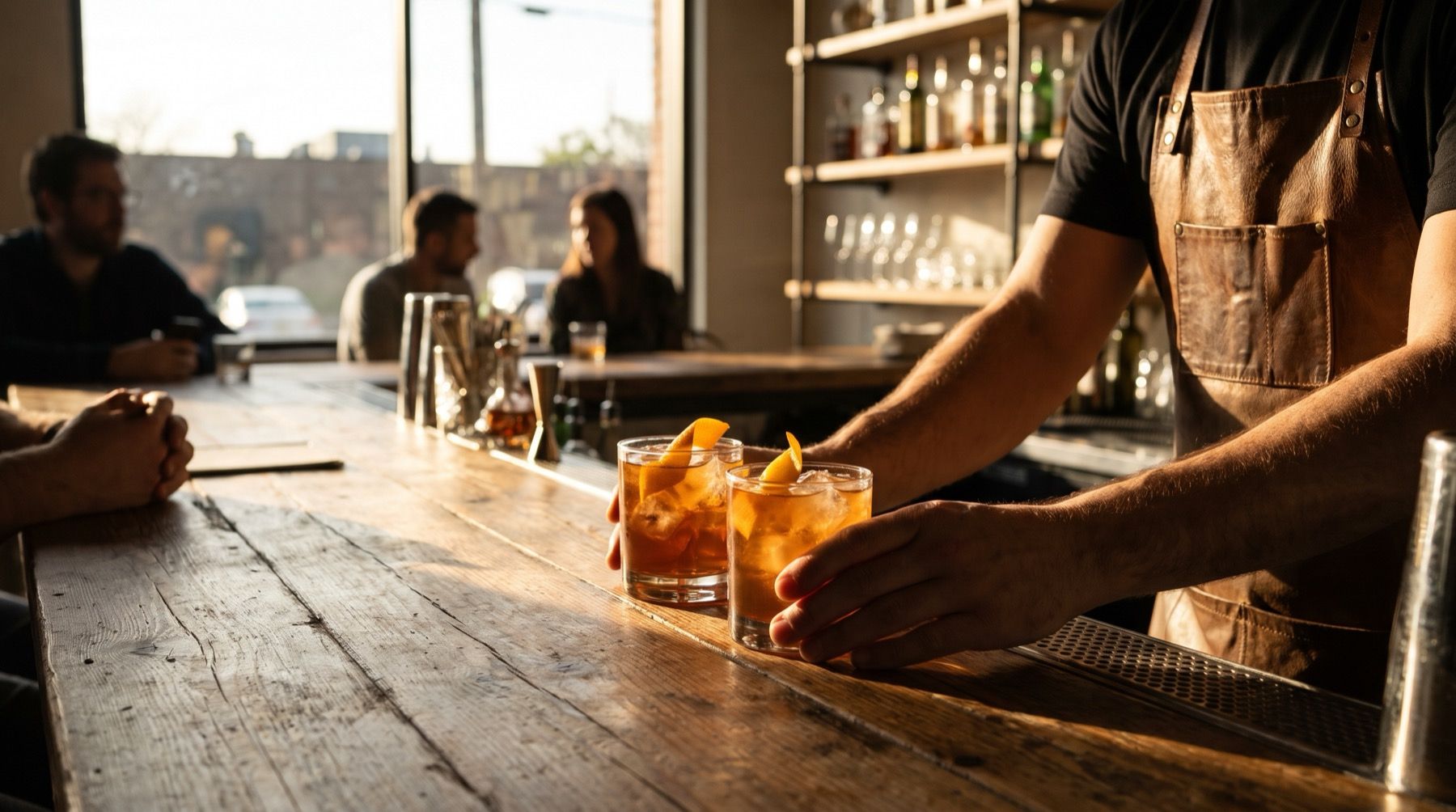
If happy hour ends at six, a discounted price still showing at half past leaves the person behind the bar to explain it.
Yodeck documents exactly this risk: a layout assigned directly to a screen can keep playing after its expiry time. Schedule the happy hour menu and its replacement, then watch the finish as carefully as the start.
Put the offer terms beside the offer
List the eligible products, serving sizes, prices, days and hours. Keep any conditions beside the relevant offer. Staff should not need to explain a restriction hidden in a tiny footer.
For example, a planning draft could say weekday food specials, 16:00 to 18:00, with the actual eligible dishes and checked prices beneath. Use your own terms and venue time zone. This example does not establish what alcohol offers your venue is permitted to run.
Before promoting alcohol, confirm the applicable licensing and local promotion rules with the relevant authority or adviser. This is not legal advice. A screen schedule does not approve the offer itself.
Keep the core menu visible
If you have several screens, give drinks, food and specials distinct roles. If you have one, reserve enough room for the ordinary choices customers still need. Avoid alternating the entire menu with a promotional slide that hides the ordering information.
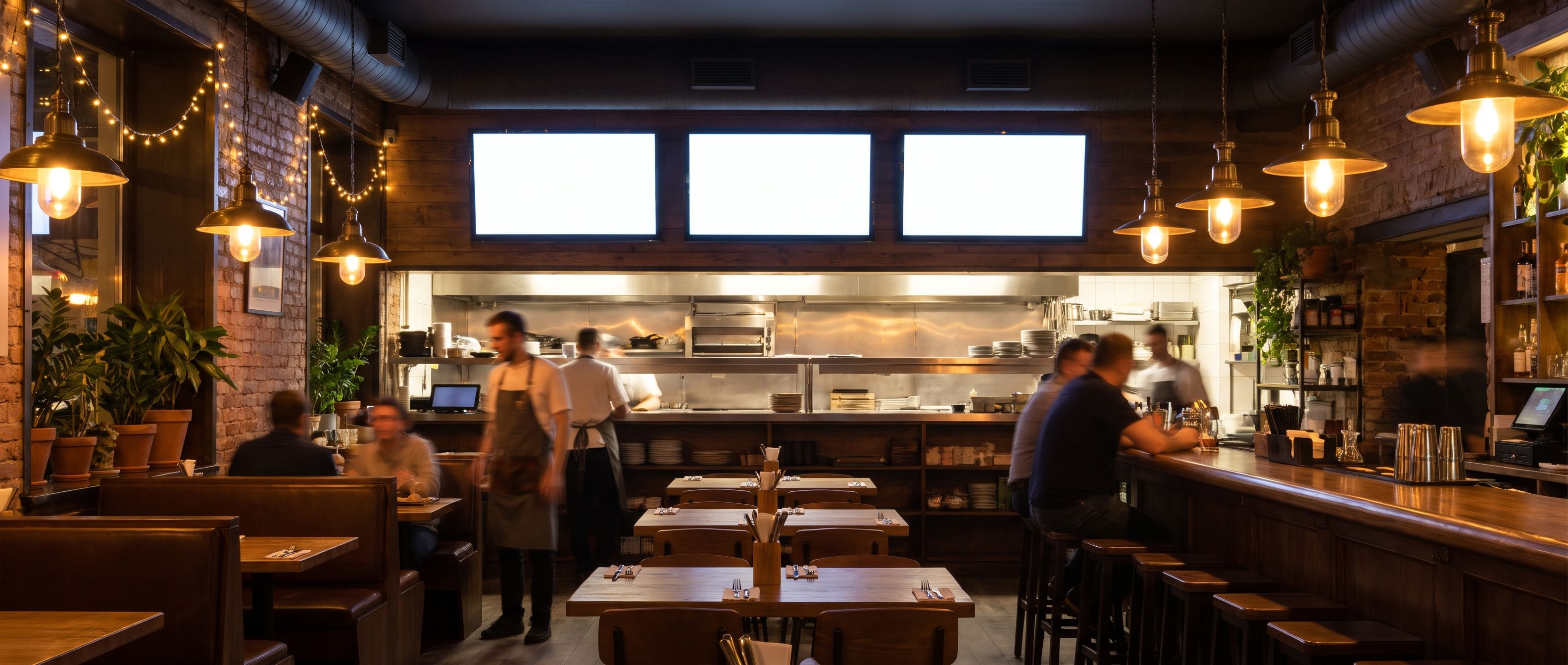
Start with the editable templates and check the menu font-size guide after adding offer terms. Customers need to read the conditions as well as the headline.
Schedule the offer and the normal menu that follows
The example below uses Europe/Zagreb local time. Replace it with your actual service and permitted offer window.
| Period | Content | Check |
|---|---|---|
| Before 16:00 | Normal menu | Standard prices visible |
| 16:00 to 18:00, eligible days | Approved happy hour menu | Correct items, sizes and conditions |
| From 18:00 | Normal evening menu | Promotional prices have gone |
| Closed days or excluded dates | Normal menu or closure notice | No recurring offer left active |
Decide what happens when the offer sells out early. Keep an approved replacement ready. A recurring schedule handles the planned window; it cannot know that the kitchen has run out unless someone or a verified connection supplies that information.
Check holiday exceptions and any event that takes over the same screen. Give one person responsibility for changes so two people do not publish competing versions during service.
Yodeck needs a playlist for layout expiry
Yodeck’s layout scheduling guide describes a specific setup condition:
Availability only behaves as expected when the layout is included inside a playlist.
The guide says directly assigning the layout to a screen can leave it displaying after expiry. It also warns that expiry with no other available content can produce a black screen. Use the documented playlist setup and keep valid normal content available.
Stay with Yodeck if your playlists already handle the change correctly. Kinosign makes a competing product, so weigh our view with that in mind. Its pre-launch offer includes time-of-day schedules.
Watch the return to normal prices
Use two approved menus and a short temporary window. Watch the offer start and finish on every screen showing it. Then restore the real hours, weekdays and time zone.
The daypart guide covers meal changes. The device checklist covers the player’s startup and connection.
Give staff a fallback for a missed change
A disconnected player cannot receive a new offer or correction. Previously downloaded schedules may behave differently by player, so test your actual installation before relying on them.
Keep a normal printed menu and a clear procedure for taking an incorrect display out of use. Tell staff when the physical screen has been checked, rather than when someone clicked save.
Make the offer and normal menu in the free menu maker. Rehearse the return to normal prices before scheduling the next service.
Sources
Vendor prices and plans were checked against each linked page in November 2026. They change often, so open the page before you buy.