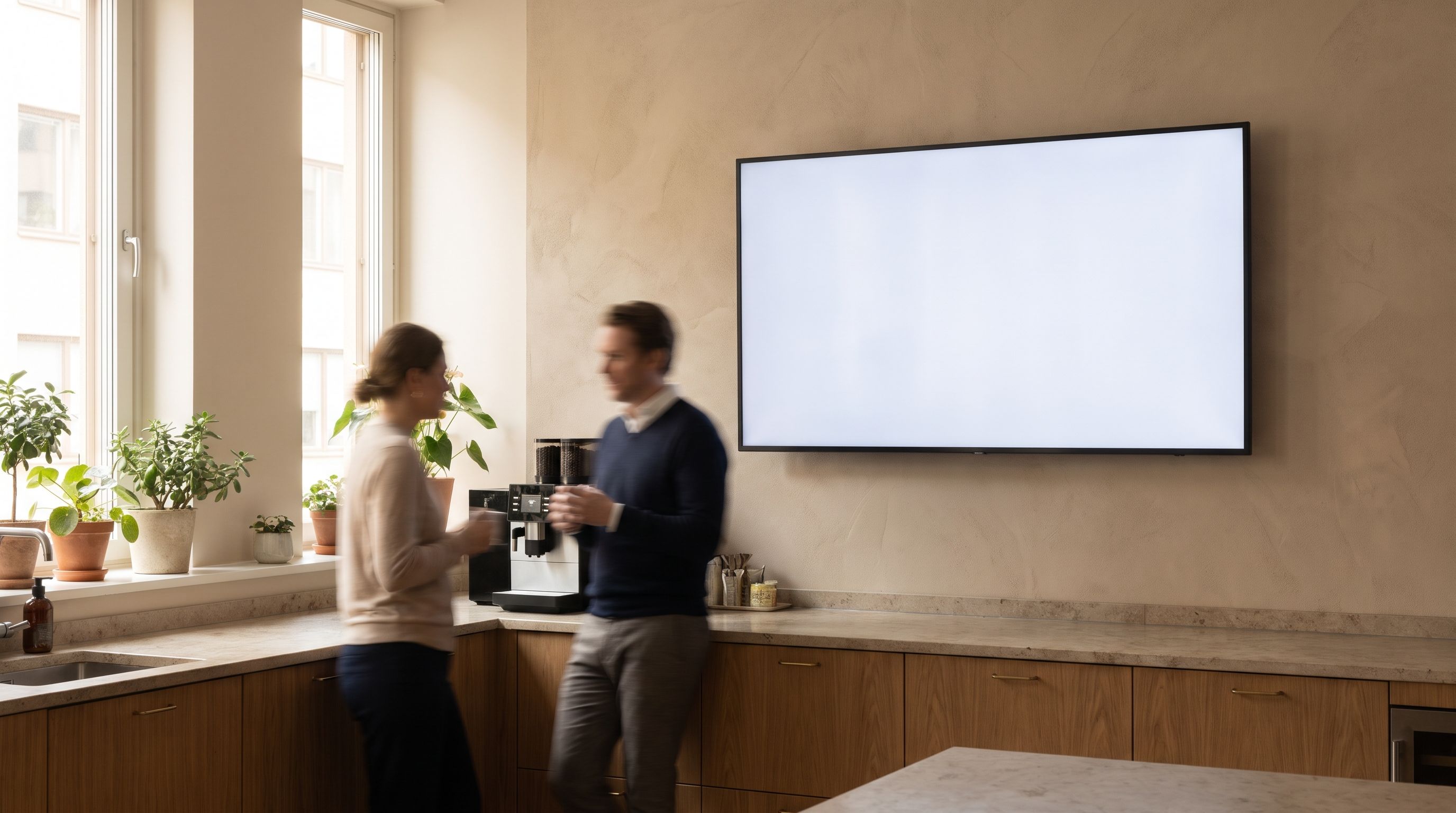
A digital sign can show a single image on a TV. Connected digital signage adds a way to change that content remotely, schedule it and see whether the player is still connected.
You can start with one TV to keep the lunch menu current or show visitors where to check in.
The screen, the player and the software.
Three parts work together. They may look like one device from across the room, but separating them helps you choose a setup and understand a problem.
- The screen is the TV or display people look at. Size, brightness, placement and operating hours matter here.
- The player sends the content to the screen. It may be built into the TV, connected by HDMI or running in a browser.
- The software is where you prepare content, choose a screen and set a schedule. It also needs a way to communicate with the player.
If the player loses its connection, the TV may still be on. If a player reports a successful update, that does not prove the TV panel is switched on. Check the physical setup as well as the account status.
Everyday examples of digital signage.
These examples are original editable designs from this site, not photographs of customer installations. You can open each template and replace the sample details with your own.
A menu at the counter
Show the dishes available now, with readable prices. A connected player can switch a breakfast menu to lunch when the schedule changes. Keep the ordering menu visible even if a second screen shows entertainment.
Explore the menu-board workflow or open a menu template.
An update in the office
Welcome a new colleague or remind the team about an event. Give each message an end date so a shared screen does not become an archive of old announcements.
See notice boards and the editable office example.
A welcome in a lobby or rental
Put reception instructions, breakfast hours or Wi-Fi details where guests can find them. Use general welcomes on shared screens. Room-TV startup and remote controls need testing for each property.
Review hotel setups or plan a holiday-rental welcome.
Content you can put on a screen
Images, videos and short notices are common starting points. A calendar, weather feed or web page can add current information, but it also introduces access, refresh and internet requirements.
A scheduled channel is another option. Producing a channel means deciding which videos play and when live events join the program. Playing an existing stream is a separate job. Kinosign’s channel service is intended to cover production alongside signage.
A software subscription does not include the right to show any film, song, sports event or television stream you find online. Use content you own or have permission to show in your setting.
When digital signage needs internet
It depends on what the player is showing. A supported player may keep downloaded images and videos locally. Live streams and current feeds need a connection. New remote changes also need a connection to reach the player.
Ask what happens during an outage, after a restart and after reconnecting. Do not treat a general “offline playback” statement as proof that every content type will work. The device guide separates those checks.
Choose one job for your first screen.
Write down what someone should learn or do after seeing it. Then decide where the screen belongs and what content it needs. A menu keeps ordering information in view; rotating unrelated promotions can interrupt it.
- Choose who the screen is for and what it should tell them.
- Make a design using details you have checked.
- Confirm the TV and player can show it clearly.
- Test the setup in the actual room.
- Assign someone to keep the content current.
For your first menu, follow the TV menu board guide. For costs, review the draft screen pricing and include any player, TV, installation and separate channel service.
Sources and limits.
The examples in this guide come from the editable Kinosign template gallery. Hardware pairing, offline recovery and room-TV behavior have not been field-tested for this build. Android’s official TV documentation explains the platform; it does not certify a Kinosign device.
For readable type, consult the W3C’s contrast guidance and check the result in the room. No setup-time, sales-lift or reliability claim is made here.