You may already own the expensive part of a digital menu board: the TV. Use it for an indoor menu if its operating limits, picture and mounting suit the room.
Keep the display purchase separate from the software bill. Yodeck lists basic scheduling in Basic and advanced media scheduling in Premium. A new panel will not change which software tier your workflow needs.
Separate the display, player and menu software
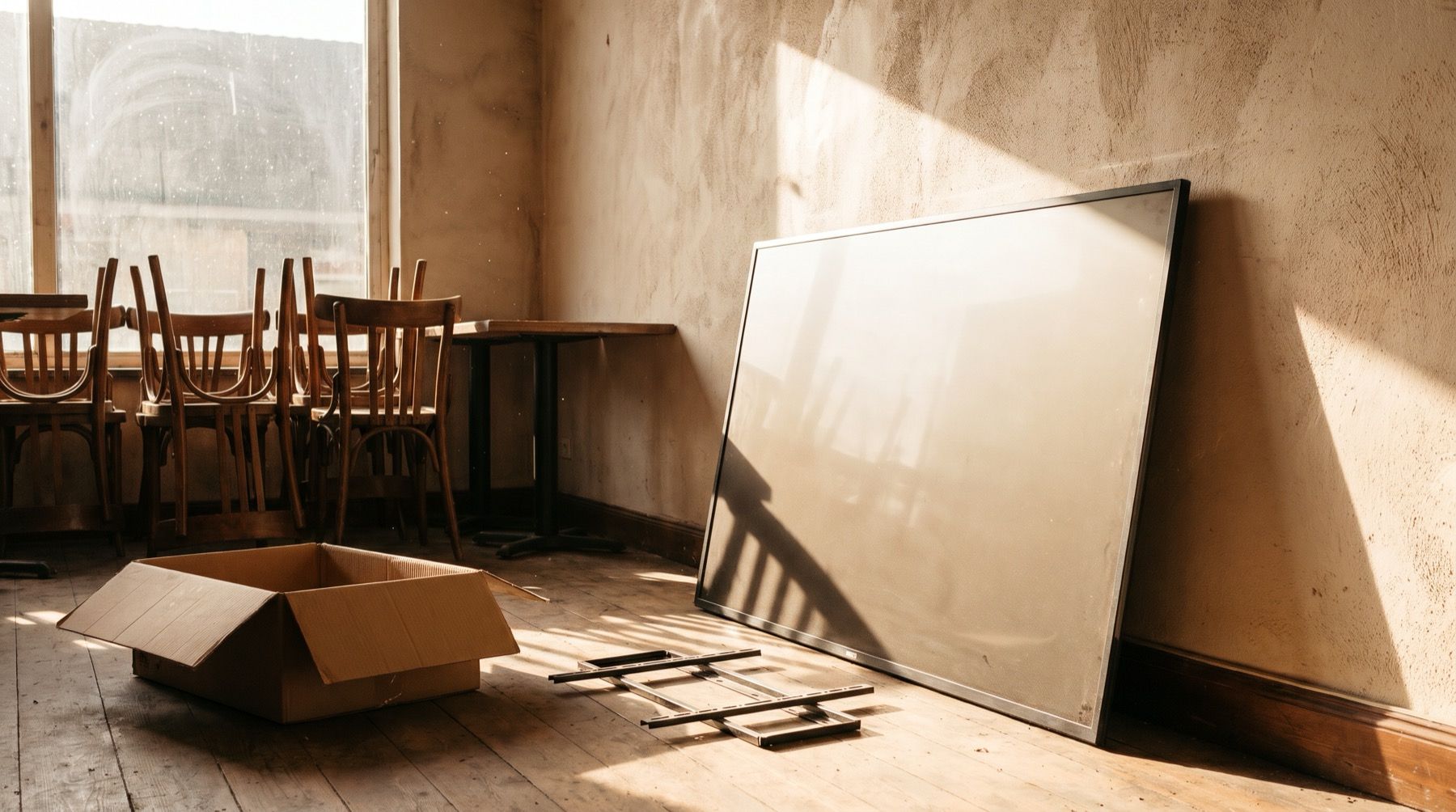
The display makes the picture visible. A player provides the content, either through hardware connected by HDMI or a supported app inside the display. Menu software is where you prepare changes and decide when they appear.
A smart TV needs a supported app. A commercial panel may still need a separate player and subscription.
| Part | Job | What to check before paying |
|---|---|---|
| TV or commercial display | Show the picture | Brightness, viewing angle, hours, orientation and mounting |
| Player | Deliver the menu to the display | Exact model, app support, startup and recovery |
| Menu software | Prepare and schedule content | Editing, screen count, billing term and your required features |
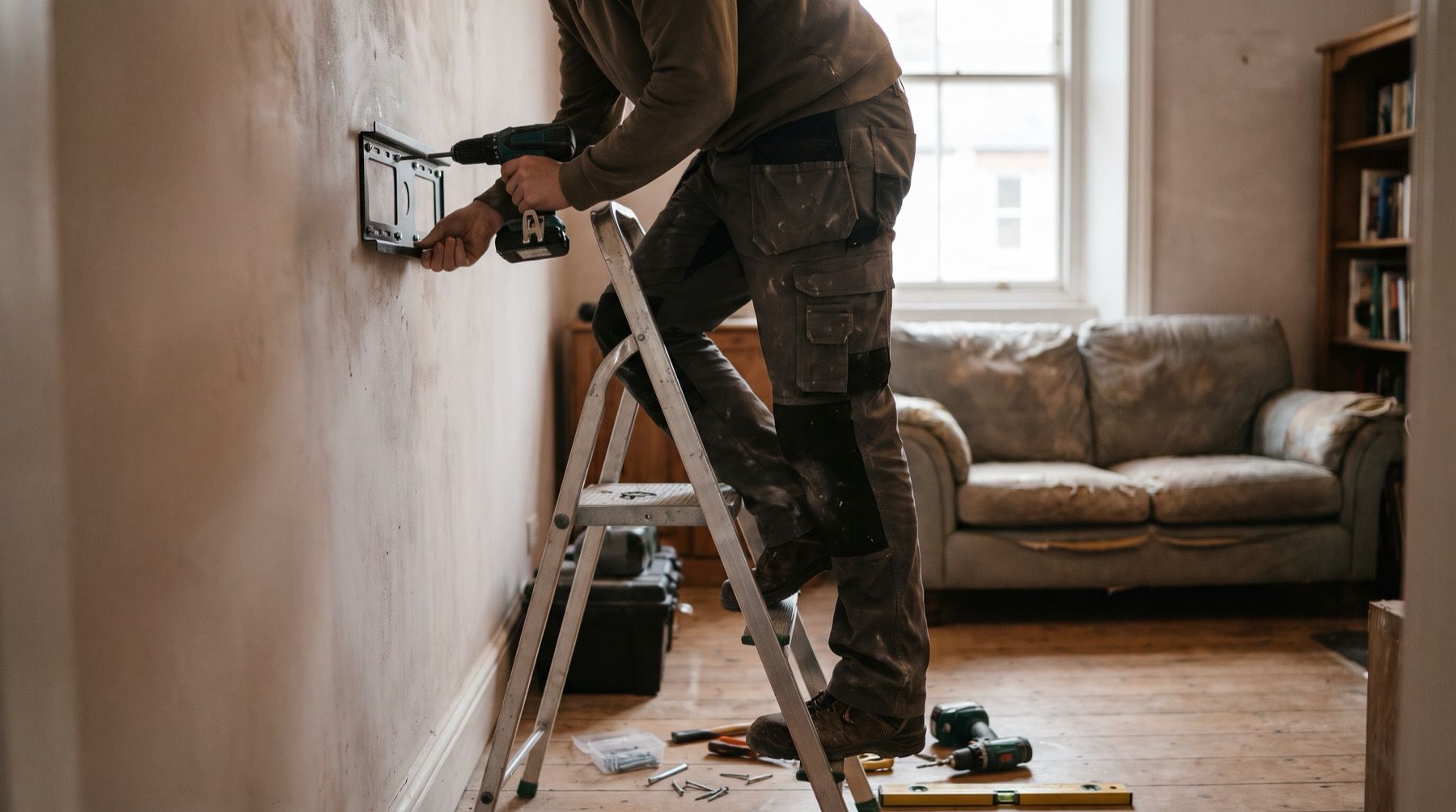
| Installation | Put the equipment in the room | Safe mount, power, cables, ventilation and service access |
Start with the TV menu-board guide if you need the basic content-to-screen options. Keep a plain menu image ready while comparing software.
Try your existing TV in its actual position
Put a sample menu on it and stand where customers order. Read the smallest item name and price. Check from the side too, especially if a queue approaches at an angle.
Do this when the shop is open, with its usual lights on. A TV that looks fine in an empty room at night can reflect a bright window at lunch. Move the screen or change the lighting before trying to solve every problem with larger text.
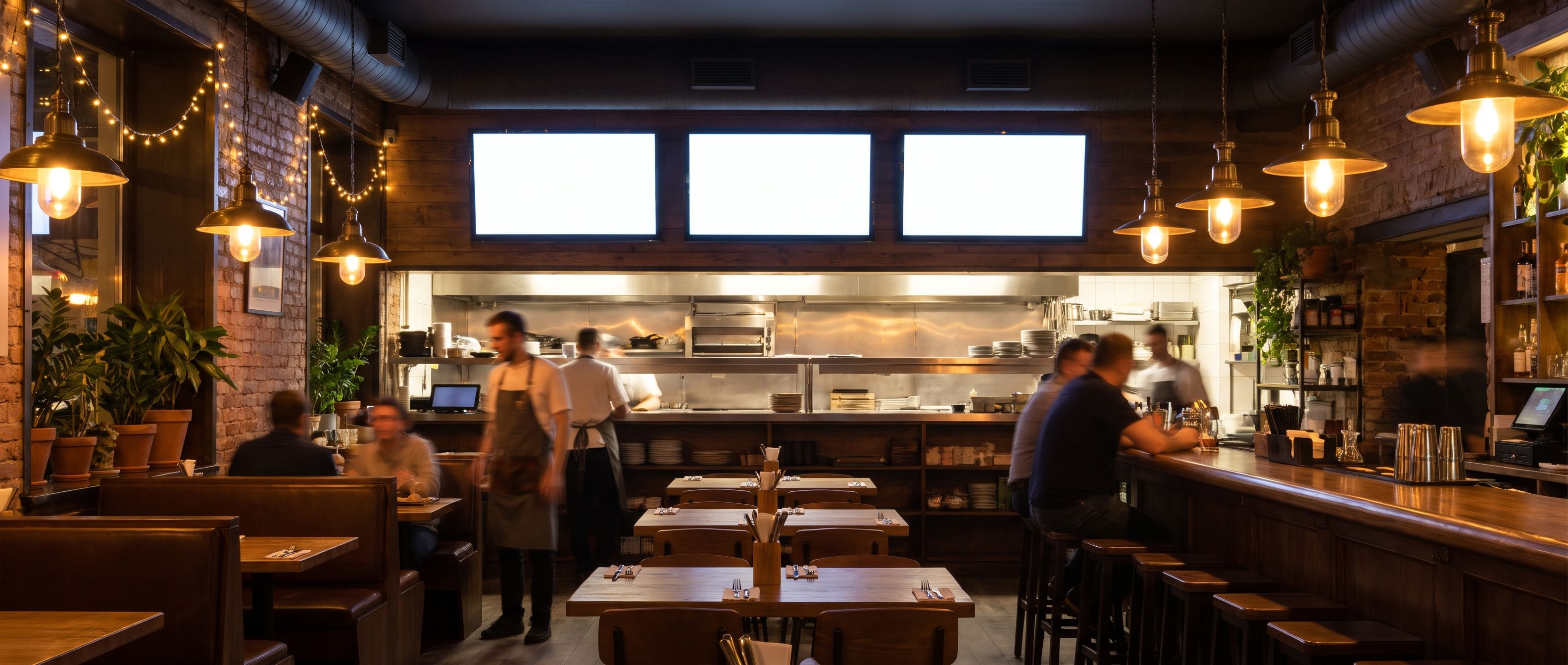
Give each menu a stable place. If the drinks list vanishes whenever a promotional video starts, a customer has to wait to finish ordering. Put the promotion on a spare screen or show it outside the ordering period.
The manual sets operating hours and mounting limits
Consumer and commercial labels are broad. Read the specific display’s operating limits, supported orientation and installation instructions. Do not assume turning a TV sideways is approved because your design exports in portrait.
ScreenCloud makes the operating-hours distinction explicit in its Android guide:
Consumer-grade Android TVs are not designed for 24/7 operations
For a specific commercial example, Samsung’s QMC support page identifies the 43-inch model as a 500-nit, 24/7 professional display. Those are manufacturer specifications for that model, not a requirement that every menu board needs it.
A daytime café and an always-open reception have different requirements. Choose the display after writing down the hours and conditions. Warranty coverage for business use also needs checking with the seller or manufacturer.
Choose playback that matches how often you edit
For a static menu, a TV’s own media playback may be enough if its manual supports your file type and the startup routine is acceptable. It still needs a person to replace the file and confirm the correct version is showing.
Consider a connected player when breakfast, lunch and dinner need separate menus, or when several TVs need updates. Check scheduling, the local time zone and what happens after a connection failure. A disconnected player cannot receive a changed price until it reconnects.
Yodeck’s published Basic features include basic scheduling and playlists; Premium lists advanced media scheduling. Keep Yodeck if its existing player and menu workflow already fit your shop.
Kinosign makes a competing product, so weigh our view with that in mind. Its screen service is pre-launch. Its launch plan includes time-of-day schedules and PDF, image and video uploads. Fire TV, Android TV and a web player are launch targets, with exact device verification pending. Use the supported-devices page before buying a player.
Make the menu fit the TV
Create the design for the screen’s orientation. A print menu pasted into a landscape TV image often wastes space on margins and leaves item text too small. Arrange the items and prices so a person can read them while ordering.
Use the editable menu-board templates to compare layouts. Split a long menu into readable sections. Keep essential prices beside their items, and review the actual words rather than treating an attractive design as approval.
For a Canva menu, export a PDF first. Kinosign has no native Canva integration.
Buy a commercial display for a specific need
Long operating hours, approved portrait mounting or window brightness can justify a new panel. If your current TV already suits the room, spend the effort on a readable menu. Compare the player and fitting too in the complete cost guide.
Put your existing PDF through the free menu maker, review the items, and show the redrawn menu on your current TV before pricing a replacement panel.
Sources
- ScreenCloud Android player and display operating limits
- Samsung QMC display specification
- Yodeck scheduling and plan features
Vendor prices and plans were checked against each linked page in November 2026. They change often, so open the page before you buy.