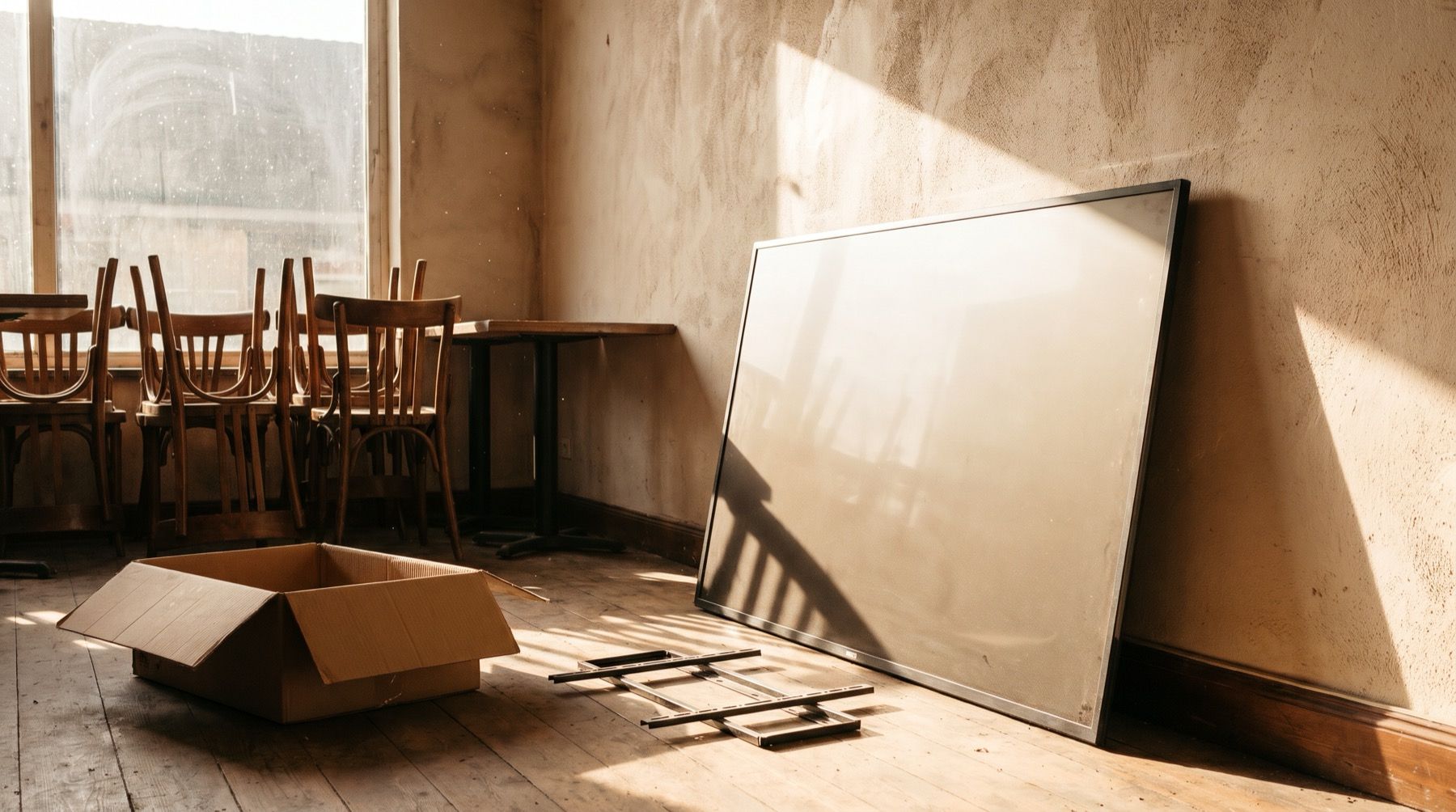
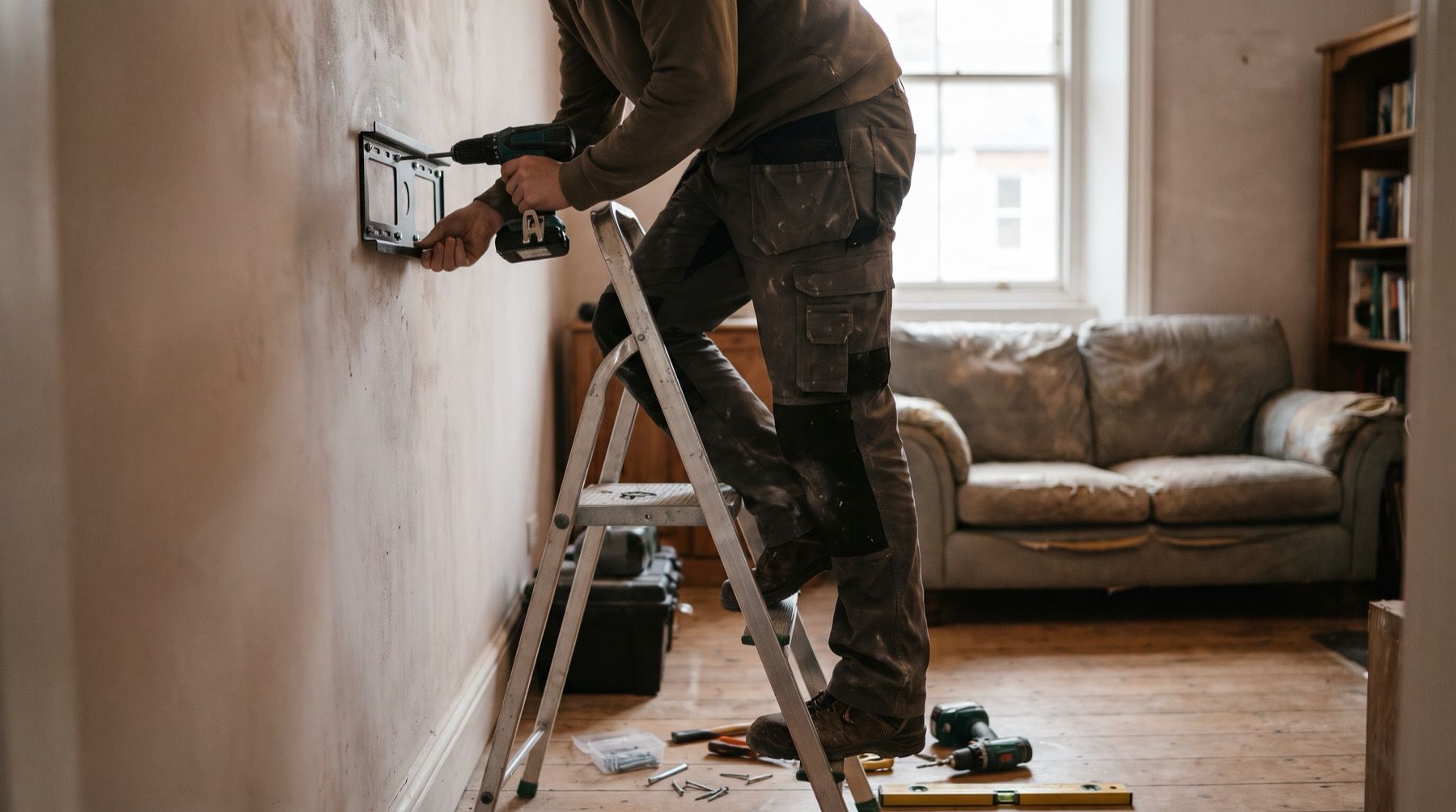
A cheap player is less appealing when you have to take down the TV to replace it. OptiSigns now warns that Fire TV Stick support will end, without giving a firm date.
Start digital signage installation with the supported device, power and service access. Then put one menu or notice on your existing TV and make sure staff can open the venue without troubleshooting it.
Put the class list where arriving members can read it
At gym reception, put the class list where a member can read it before walking to the studios. Avoid making people turn around after passing the desk. Check the view from the entrance and from the queue.
Look for reflections and blocked sightlines during opening hours.
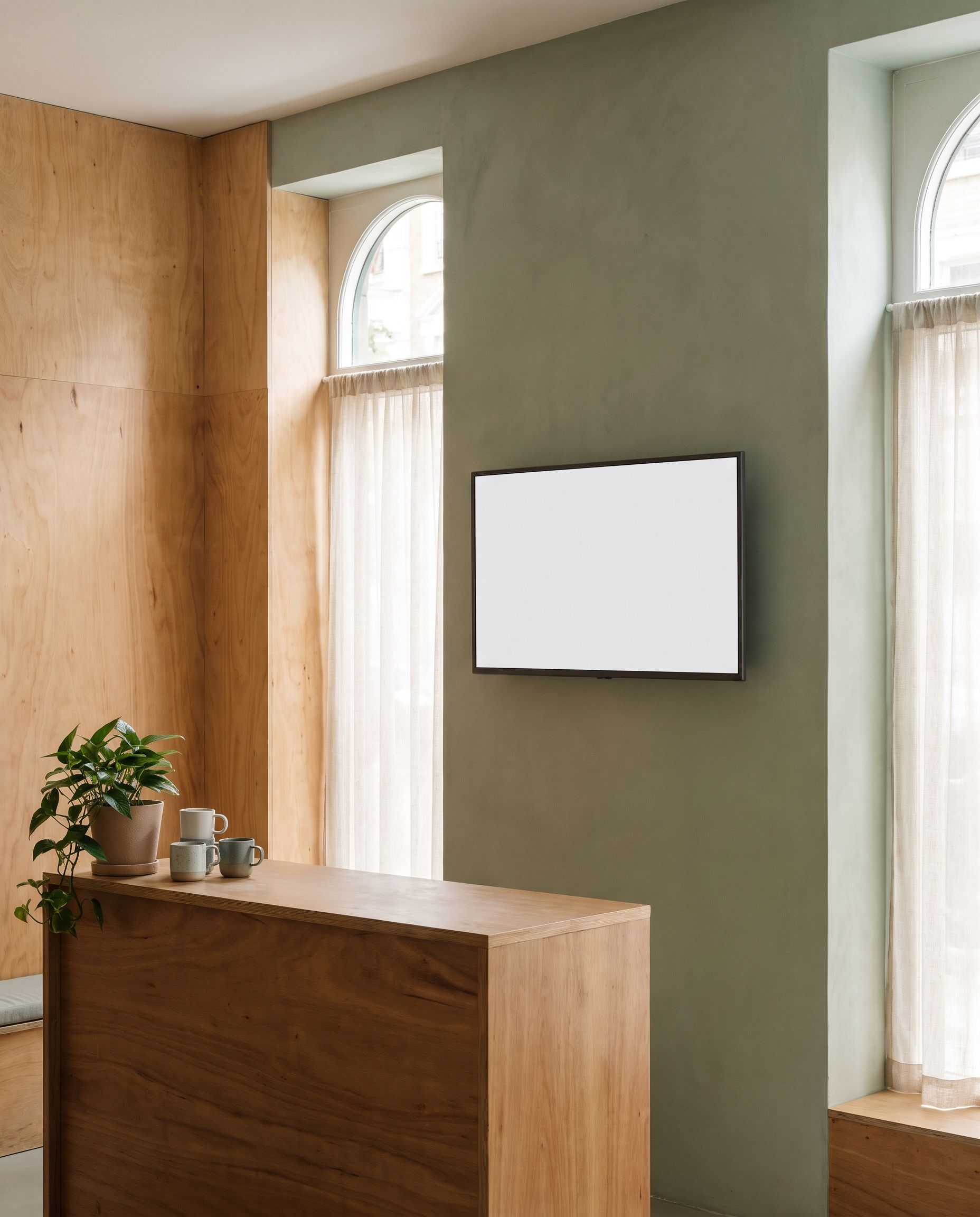
Inspect the TV, mount and service access
Find the display manual. Check permitted operating hours, orientation, ventilation and mounting instructions. A landscape TV needs explicit approval before you plan a portrait installation.
Match the bracket to the display and wall using the manufacturers’ instructions. Use a qualified installer where needed. Keep cables out of walkways and leave a way to reach the player without dismantling the whole installation.
Put the remote somewhere staff can find it. Label the correct input and record the TV model. A little information behind reception can save a long search when someone covering a shift needs help.
Match cables and accessories to the chosen player
A TV with an approved built-in app may not need an external box. Otherwise, choose a compatible HDMI player. Check its power supply, network options and required clearance before ordering cables or hiding it behind the panel.
Platform labels are not enough. Current OptiSigns Fire TV instructions describe OS-specific startup limits and a planned end to Fire TV Stick support. That is a practical reason to read current model guidance before following an old installation video.
Kinosign makes a competing product, so weigh our view with that in mind. Its screen service is pre-launch. Its launch targets are Fire TV, Android TV and a web player. Exact models remain pending verification. Use its device guide before buying hardware. If an incumbent already supports your installed devices and required workflow, keep it in the comparison.
Check power and network access at the screen
Use the power method specified for your chosen player. Do not substitute a convenient USB socket without checking its suitability. Amazon’s instructions for its separate Signage Stick say:
Each Stick must initially be plugged in to a power source using the included USB cable and power adapter.
This is Amazon’s power requirement for that device, not a Kinosign compatibility claim.
Check the network from the installation position. A phone with a good signal by the front door says little about a player behind a TV. Ask whoever manages the network about guest login pages, device restrictions and any approved wired connection.
Install the app and assign one clear file
Use the provider’s official installation instructions. Sign into the venue’s account, connect the player and name the screen by location. Check that you are assigning content to the intended TV.
Start with one image containing the real notice or schedule. Confirm the edges are visible and text is not stretched. If the TV crops the picture, review its picture-size settings before changing the source design.
For a gym timetable, put the date, class time and room in the image. Keep the booking system as the source for capacity and cancellations. Prepare the file from an editable template, then review it on the physical TV.
Watch the first scheduled change
Set a short trial using the venue’s time zone. Watch the TV switch from one approved file to the next, then restore the real hours and closed-day rules. A disconnected player cannot receive a newly saved schedule.
Restart the setup and disconnect the network
| Installation check | What staff need |
|---|---|
| Turn the TV off and on | Input selected and picture restored |
| Restart the player | App returns or documented manual step |
| Leave it through operating hours | Any screensaver, sleep or unwanted prompt |
| Disconnect the network | What remains visible and what stops |
| Send an edit while offline | Old version remains until the change can arrive |
| Reconnect | Correct file and schedule return |
| Ask a colleague to open the venue | They can follow the written routine |
Read status pages alongside the screenshot timestamp and what someone can see on site. A player can be connected while the panel is on another input.
Leave a short maintenance note
Include the screen name, correct input, opening steps and person to contact. Record where editable content lives and who approves changes. Do not leave account passwords on a public sheet beside the TV.
Add a content check to the opening routine.
Use the cost guide to budget hardware, fitting and subscriptions together. For the content itself, the design guide covers the across-the-room reading check.
Check your model against the device guide, then restart the complete setup and have a colleague follow the opening instructions before you hide any cables.
Sources
Vendor prices and plans were checked against each linked page in November 2026. They change often, so open the page before you buy.