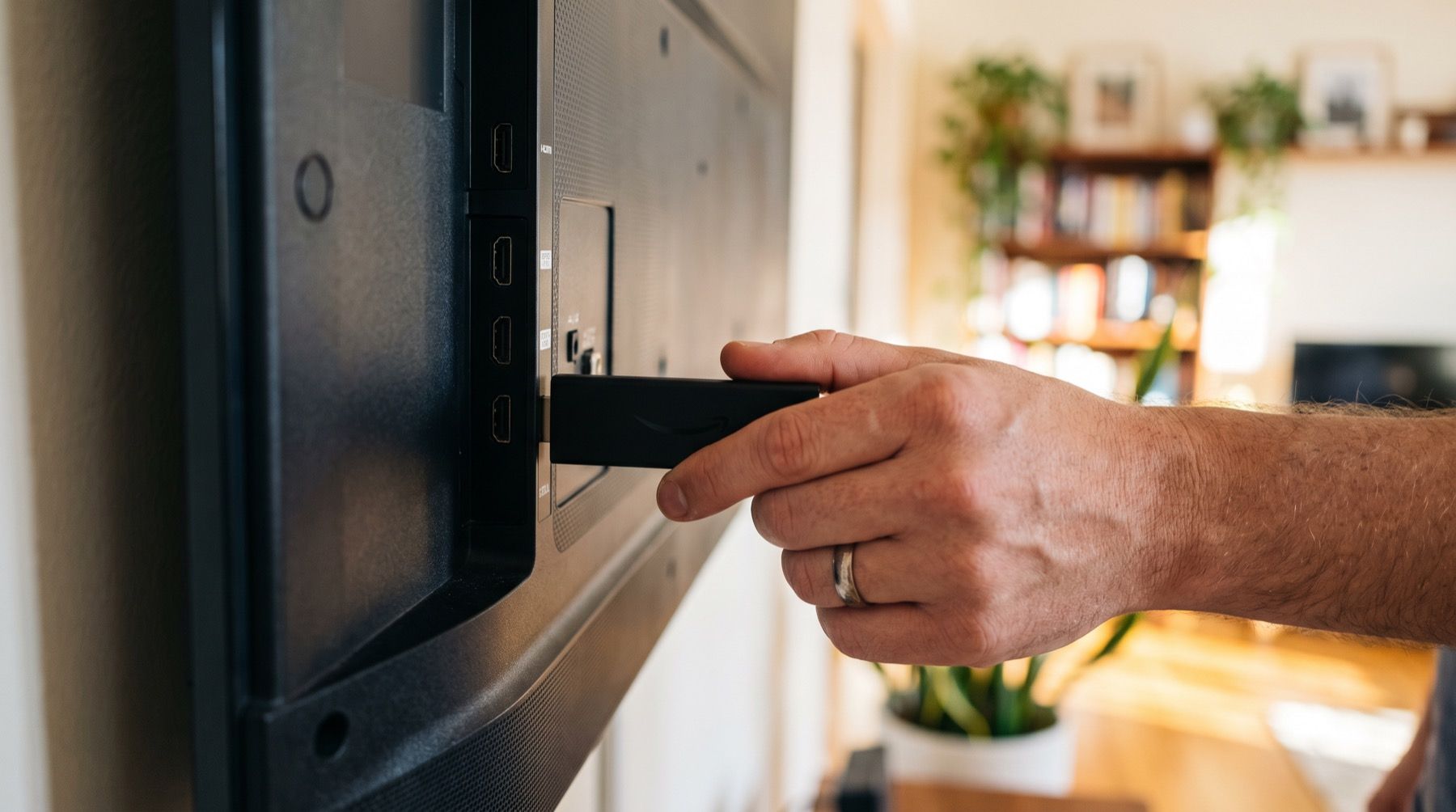
Do not buy a fleet of Fire TV Sticks from an old setup guide. OptiSigns says it will end Fire TV Stick support, with no firm date given. Its current guide also lists Fire OS 8 as unsupported.
For Fire Stick digital signage, confirm that the app supports your exact model. A low purchase price is poor value if someone has to find the remote every morning or replace the stick after installation.
Read the model and operating system
Find the model, generation, OS and app version in the device settings. Use those details when asking about support.
Amazon’s Fire OS overview lists devices across Fire OS and Vega OS. For example, it identifies the Fire TV Stick 4K Select as a Vega OS device. A Fire OS installation guide is not enough evidence for that model.
Check three separate things with your chosen provider:
- Can you install its current player through an approved route?
- Can the app stay visible for your full opening day?
- Does it reopen after the stick loses power?
A yes to installation answers only the first question.
OptiSigns gives no firm end date for Stick support
Its Fire TV setup guide, checked November 2026, says:
OptiSigns will end support for Fire TV Sticks in the near future.
That guide lists Fire OS 7 as working, Fire OS 8 as unsupported, and Vega OS as working with limits. For Vega, it describes manual startup and the need for video in the playlist to avoid sleep during image-only use.
There is a documentation conflict. OptiSigns’ separate supported-hardware list still calls Vega OS incompatible. Ask support to confirm your exact device in writing. Neither page establishes a firm support-end date.
Keep a working OptiSigns fleet while you get a model-specific support answer and plan replacements. Do not expand it on the strength of an old compatibility list.
Start with the notice people need to read
Start with an image containing the information people need. For an office kitchen, that might be today’s visitor instructions and a reminder about tomorrow’s lunch. Leave private dashboards and live video until basic playback works.
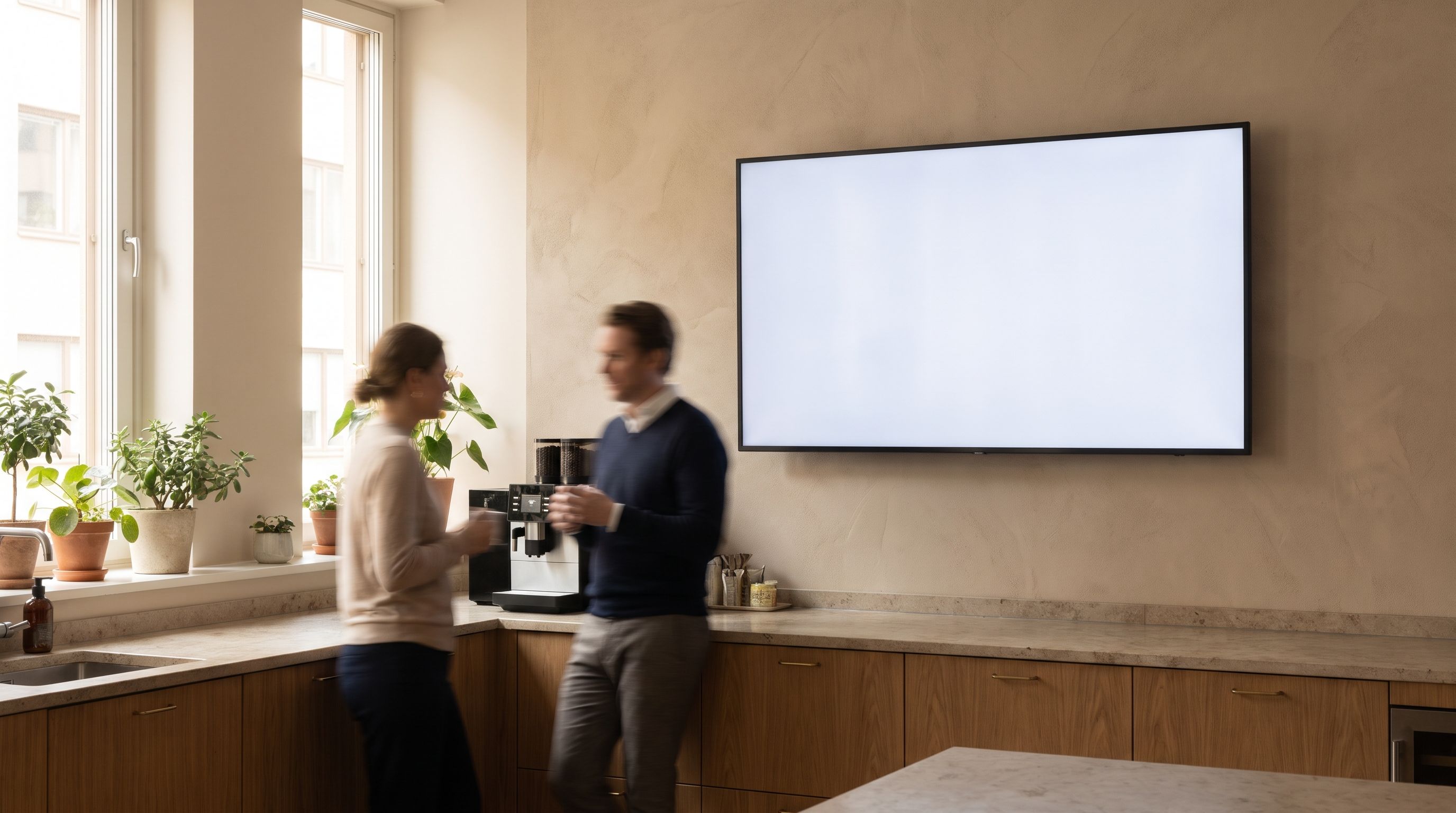
Start with the actual notice you need, then try any video you plan to show.
Connect power and check the TV input
Follow the power instructions for that exact stick. OptiSigns’ setup guide recommends the supplied Fire TV power adapter and cable instead of the TV’s USB port. Keep the player accessible enough to service without taking down the display.
Select the HDMI input and check the whole picture. Corners, prices and footer text should all be visible. If the image is cropped, inspect the TV’s picture-size setting before shrinking every design.
Turn the TV off and back on. Then restart the player separately. These are different tests: a TV can return to the wrong input while its player is still running normally.
Test restarts and lost connections
| Test | What to watch | What staff need |
|---|---|---|
| Restart the player | Home screen, app launch, prompts | Your notice returns using the agreed opening procedure |
| Leave it for the full workday | Sleep, screensaver, interruptions | The notice stays available throughout the required hours |
| Disconnect the network | Current file and any live content | You know exactly what remains visible |
| Reconnect | A new file sent during the outage | The player receives the change after reconnecting |
| Switch inputs | Return from regular TV | Staff can get back without an admin login |
If the player needs manual help after every restart, decide whether that fits your venue. It may be acceptable beside a staffed desk. It is a poor surprise in a locked office over a holiday.
Compare the replacement cost with the support work
Compare the cost of replacing a stick with the staff time spent keeping it running before buying several more. Our digital signage cost guide separates the subscription, player and installation bill.
Kinosign makes a competing product, so weigh our view with that in mind. Its screen service is pre-launch. Fire TV, Android TV and a web player are its launch targets, with exact models still pending verification. The device guide is the place to check that status. Do not read a launch target as a certified shopping list.
If your Fire TV combination is uncertain, compare the Android TV route. Prepare the notice using an editable template while you choose the player.
Find your stick’s model and OS in Settings. Check the provider’s current instructions and Kinosign’s device status before ordering a replacement.
Sources
Vendor prices and plans were checked against each linked page in November 2026. They change often, so open the page before you buy.